
SIAASGN - adding the contract type and position number
Faculty Assignment Form - SIAASGN
The Faculty Assignment form (SIAASGN) is used to enter and maintain assignment information for each term for a faculty member. If no courses appear on a faculty member鈥檚 SIAASGN page they have not yet been added to a course.
Locating Part of Term and Inserting Contract Type
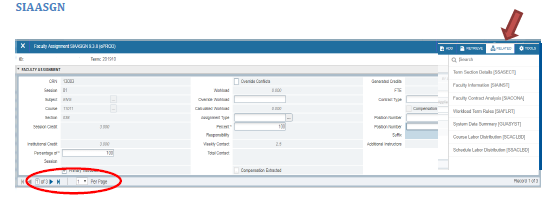
- Open SIAASGN
- Enter the KSU ID for the faculty member
- Enter the Term
- Click 鈥楪o鈥�
- Change the number of records shown so you can see all assigned courses/sections
To identify the part of term (used to identify contract type):
- Open the Related Menu
- Select Term Section Details (SSASECT)
- The course information populates automatically 鈥� Click 鈥楪o鈥�
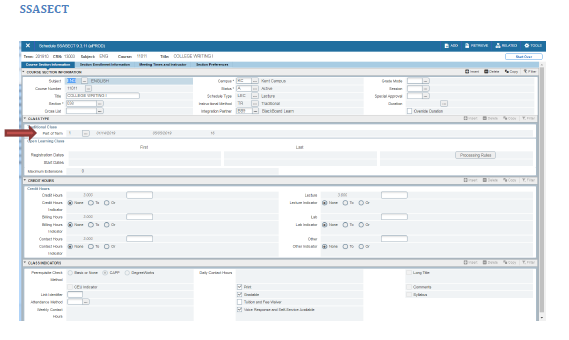
- Identify the Part of Term
- Close SSASECT
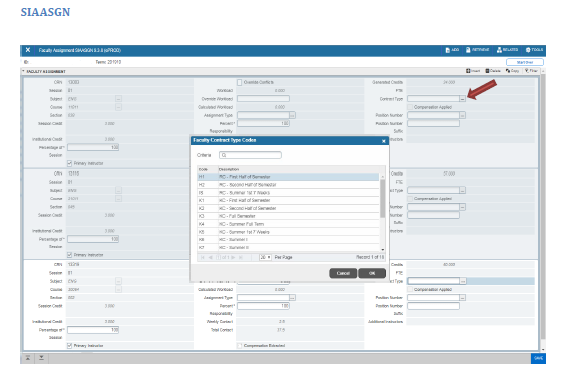
- Click the Contract Type search button
- The List of Values will open
- Select the Contract Type (Refer to SSASECT crosswalk below)
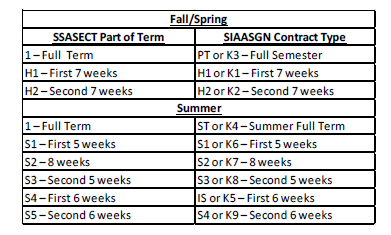
*NOTE: 鈥楶T鈥� or 鈥楰3鈥� may be pre-populated as the Contract Type in SIAASGN; each record should be verified and updated as necessary.
Locating and Inserting Position Number and Suffix
- Select the Position Number Search Button
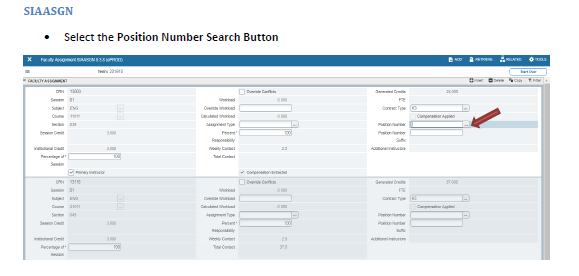
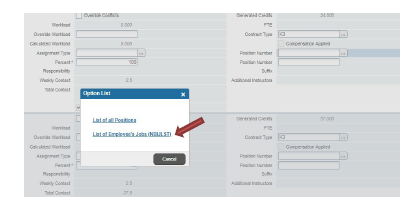
- The Options List will open
- Select List of Employee鈥檚 Jobs (NBIJLST)
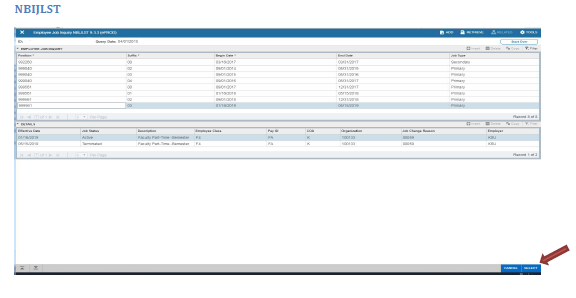
- Choose Select when you have found the correct position number 鈥� keep in mind the instructor may teach for other departments/campuses as well
- You may need to change the Query Date to an earlier date to show all the position numbers for the employee (i.e., Summer positions). To accomplish this, click the 鈥楽tart Over鈥� button, select an earlier query date and hit 鈥楪o鈥�.
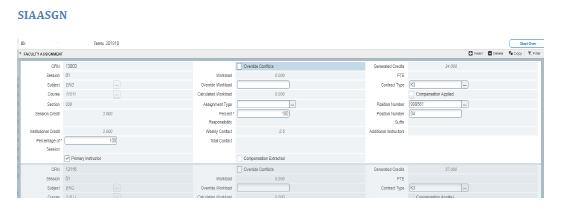
- Increase Suffix by 1* (in this example it was 03, we changed it to 04)
- *If you are adding an Assignment with the same contract type for the same term, do not change the Suffix; all Assignments with the same contract type in the same term should have the same Suffix
Compensation Extracted - SIAASGN
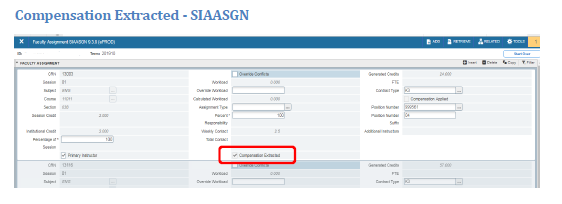
When the Compensation Extracted checkbox is enabled, the assignment and compensation information has been extracted into the Faculty Compensation module in Employee Self-Service. This checkbox cannot be changed manually.
Compensation Applied - SIAASGN
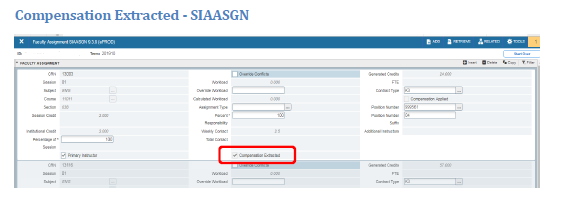
When the Compensation Applied checkbox is enabled, the assignment and compensation information has been uploaded from Employee Self-Service to the Banner HR module. This checkbox cannot be changed manually.